3. Make your own copy of the site
3.1 Create the repository from the template
Sign in to GitHub, then go to github.com/AhmadAmmar/academic-site-template. Press the green button Use this template, then choose Create a new repository.
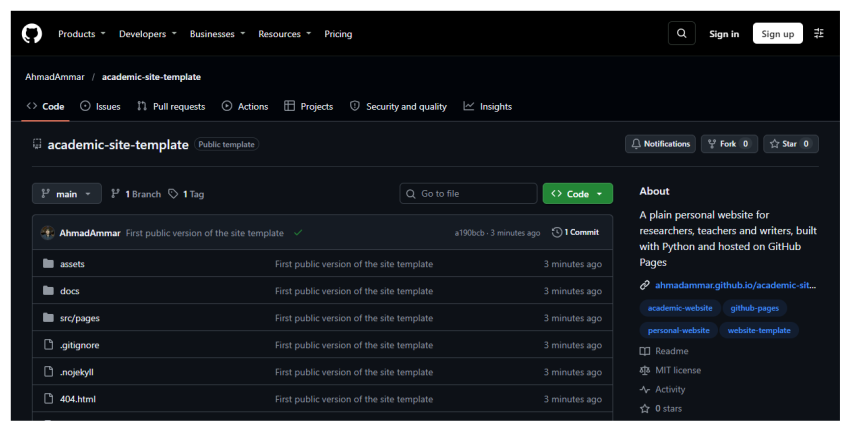
The template’s page on GitHub. Once you are signed in, a green Use this template button appears near the top right, beside the list of files.
A form opens. Under Repository name, type your username followed by .github.io. If your username is sara-khan, the name is sara-khan.github.io. This exact form matters, because it is how GitHub knows the site belongs at your main address. Leave the repository set to Public, since free Pages sites need a public repository, then press Create repository.
3.2 Bring it to your computer
Your new repository is on GitHub, and now you need a copy on your computer. On its GitHub page, press the green Code button and copy the web address shown under HTTPS.
In VS Code, open the Terminal menu and choose New Terminal. Type these two commands, using your own address in the first one:
git clone https://github.com/your-name/your-name.github.io.git
code your-name.github.io
The first command downloads the project into a new folder. The second opens that folder in VS Code. If the second one fails, use the File menu, choose Open Folder, and pick the new folder.
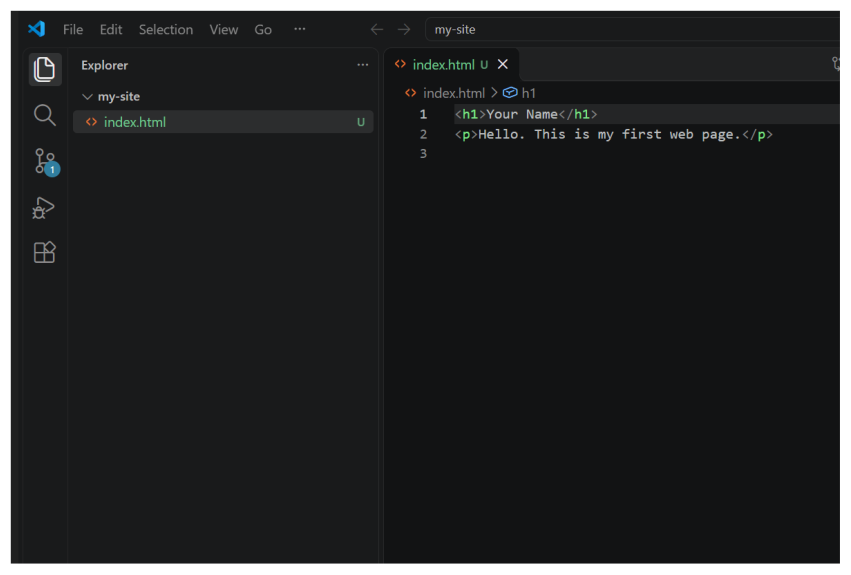
VS Code with a project open. The files are listed on the left, and the file you click opens on the right.
If VS Code asks whether you trust the authors of the files, say yes, since these are files you just chose to download.
3.3 What the files are
| File or folder | What it holds |
|---|---|
site.toml |
Your name, address, menu and links. Start here. |
src/pages/ |
The words of each page. You will edit these. |
assets/ |
The look of the site. Leave it alone at first. |
build.py |
A small program that wraps your words in the layout. |
index.html, cv.html and others |
The finished pages, which build.py writes. Do not edit these by hand, because the next build replaces them. |